All software

Fuel & stint strategy

FB Calc

Every stint. A clearer plan.

For drivers managing a stint, engineers checking fuel targets and teams planning the next stop. FB Calc brings estimated race laps, consumption and refuelling decisions into one iRacing overlay, with recorded telemetry for reviewing how the numbers develop.

Windows desktopiRacing

From fuel level to stint planning

Know your range. Plan the next stop.

Keep remaining race laps, fuel targets and pit-window estimates together while you drive. Choose the consumption reference behind your plan, compare alternatives and review a recording when a number needs a closer look.

  1. Place the dashboard

    Open FB Calc on your Windows simulator PC. Set the language, position, scale and opacity, then use F8 to finish editing. Borderless windowed iRacing is the recommended display mode.

    Explore this step
  2. Set your assumptions

    Choose NOW, AVG10, AVG5, MAX or SET as the main consumption indicator. Review spare laps, extra-lap scenarios and pit parameters before choosing whether FB Calc may set the pit-menu fuel amount.

    Explore this step
  3. Follow the stint

    Watch estimated race distance, remaining fuel and the pit window together. Compare consumption targets with your recent driving and recheck the plan when pace, conditions or race length changes.

    Explore this step

Windows 10/11 desktop application. Live calculations use iRacing telemetry; sample values let you position the overlay without a running session.

Inside FB Calc

One dashboard. The detail behind every fuel call.

Explore 10 application screenshots, from the same dashboard at different stint stages to its settings and recorded-telemetry tools. Each view explains what to read, what to adjust and which assumptions matter.

01/ 10 Your fuel plan at a glance Scroll to explore

Race & fuel

Your fuel plan at a glance

Dashboard · Pit window

Keep estimated race distance, fuel to add and the pit window together in the driver's view.

What to look for

The purple banner marks an open pit window under the selected assumptions. ADD uses MAX consumption; ADD SAFE uses AVG5. The highlighted indicator drives the main stop and window calculations. The leader gauge shows how a pace change could add or remove a race lap; it is a projection, not a confirmed finish distance.

Make it your own

Choose the main indicator in Calculations, review spare laps and extra-lap scenarios, and set pit-lane loss and service parameters. Compare the alternative fuel amounts before committing to a stop.

Race & fuel

Find the consumption you can sustain

Dashboard · Early stint

Compare recent fuel use with the target for extending your current stint.

What to look for

NOW compares fuel at the same track position one lap apart. The green/red meter shows its difference from AVG5. Fuel Extra Lap gives the consumption target for one more whole lap of range, while Stint Laps combines completed and remaining stint distance. AVG10, AVG5, MAX and SET provide alternative fuel and range estimates.

Make it your own

Select the reference that suits your plan, enter a SET value or override MAX when an unrepresentative lap has inflated it. Use the stint target and spare-lap settings to test a practical margin; a displayed target does not ensure you can achieve it.

Race & fuel

Read the closing laps

Dashboard · Closing laps

Check whether the fuel already on board covers the projected finish under each consumption reference.

What to look for

This snapshot shows NO STOP with AVG5 while ADD still requests fuel using MAX. The difference comes from the two references, not conflicting measured fuel levels. Compare remaining race laps with fuel range and keep possible extra laps in view. A change in leader pace or your own consumption can change the result.

Make it your own

Review the active indicator, spare laps and extra-lap options before accepting a no-stop plan. Compare the table's references and follow Fuel Extra Lap if you need a lower consumption target.

Your overlay

Set up without a live session

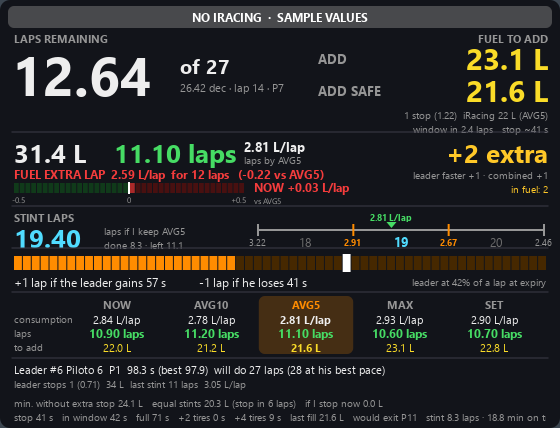
Dashboard · Sample values

Use clearly labelled sample values to place and size the dashboard before driving.

What to look for

The NO IRACING · SAMPLE VALUES banner identifies example data. Fuel, leader details and extra-lap scenarios illustrate the layout; they do not describe a live race. This view helps drivers and engineers learn where the main numbers appear.

Make it your own

Set position, size and opacity from Overlay settings or F8 edit mode. Confirm that the sample-values banner has gone and the session is correct before treating the display as live information.

Your overlay

Put the dashboard where you need it

Dashboard · Edit mode

Move and scale the single overlay to fit your driving view.

What to look for

The yellow border and EDIT banner identify editing mode. The dashboard accepts mouse input while editing; after you finish, clicks pass through it to the application underneath. Position and scale are saved.

Make it your own

Press F8, drag to move, and use the corner, wheel or +/− keys to resize. Arrow keys move by one pixel, or ten with Shift. Double-click restores 100% size; F8 or Escape finishes editing.

Your overlay

Tune your overlay and language

Settings · Overlay

Control visibility, placement and readability from a window that stays available in the Windows tray.

What to look for

Overlay settings expose the dashboard toggle, X/Y position, scale and opacity. FB Calc offers nine interface languages, with English as the default. Closing the settings window minimizes it to the tray; it does not quit the application.

Make it your own

Choose your language, enter coordinates or use edit mode, and adjust opacity for your background. Double-click the tray icon to return to settings. Use Quit to close FB Calc, and borderless windowed iRacing if exclusive fullscreen hides the overlay.

Race & fuel

Choose the assumptions behind the numbers

Settings · Calculations

Connect consumption, fuel margins and pit-service assumptions to the strategy you want to evaluate.

What to look for

The main indicator is highlighted in the dashboard table. SET supplies a custom consumption, while a manual MAX override appears as MAX*. Spare laps and extra-lap cases add planning margin. Further down this scrollable tab are pit parameters, the pit model, consumption learning and oval options.

Make it your own

Set consumption and stint targets, then review tank capacity, refuelling speed, pit-lane loss and tyre-service assumptions. Manual leaves the pit menu untouched; Semi-Auto sets your chosen litres on entry; Auto uses the calculated target plus your offset. Check the resulting pit-menu amount.

Race & fuel

Check the calculation state

Settings · Status

Read a compact summary of the engine values behind the overlay.

What to look for

Status lists the session, estimated laps, virtual leader, fuel range, stint laps, fuel to add, next-stop time and extra laps. The consumption indicator appears with the fuel figures. These values support a cross-check of the current calculation; they are not a separate strategy prediction.

Make it your own

Use this read-only tab to confirm the session and active reference. Change assumptions in Calculations, or open a recorded session through Debug when you need to examine how a value developed.

Recorded telemetry

Open a recorded telemetry session

Settings · Debug

Bring an iRacing .ibt recording into the calculation engine for a repeatable review.

What to look for

The Debug tab opens the replay window. Standard iRacing recordings contain your own car's telemetry, without the field data needed to reconstruct rivals. Fuel use, range, stops and stint calculations remain available for your car; rival-dependent information cannot be recovered from missing channels.

Make it your own

Choose an .ibt file, usually from Documents\iRacing\Telemetry, then use the replay window to inspect a moment. Review the available-channel message before interpreting leader or rival-related values.

Recorded telemetry

Follow the numbers through a recording

Debug · IBT replay

Scrub a session with the dashboard and detailed calculation values at the same point in time.

What to look for

The dashboard and indicator tree follow the timeline. Moving forward processes intermediate engine frames; moving backwards rebuilds the state from a stored checkpoint. The player-only notice in this screenshot identifies missing rival channels: the virtual leader then represents your own car.

Make it your own

Open a file, play at x1, x5 or x10, jump ten seconds, or move to the beginning and end. Use the slider for a specific moment and expand indicator groups for detail. Enable Also show on the overlay if you want the recording displayed in the separate dashboard.

Actual application screenshots, including an explicitly labelled sample-values view. Dashboard numbers are estimates based on the available telemetry and selected settings.

From a number to a decision

Start with your next fuel question.

Follow these routes through the dashboard, settings and replay tools. Keep the selected reference and the available telemetry with every conclusion.

Keep the setup under your control.

01Five consumption references

NOW compares the same track segment across consecutive laps; AVG5 and AVG10 average available valid laps; MAX keeps the highest observed consumption; SET uses your chosen value. The active reference drives the main calculation.

02A margin you can inspect

Set spare laps and decide which extra-lap scenarios enter the fuel calculation. The case where the leader slows on the final lap also has an adjustable time threshold.

03Fuel-menu automation is optional

Manual mode does not change iRacing's pit menu. Semi-Auto uses a fixed amount; Auto uses the estimated requirement plus an offset. The command is sent once per stop, so check the requested fuel amount.

04Pit assumptions for the event

Review pit-lane loss, usable tank, refuelling speed and tyre-service timing. Car data provides defaults where supported; circuit-specific loss and your chosen settings still affect the estimate.

05Quick placement, saved settings

F8 unlocks the dashboard for moving and resizing. Settings also provide exact coordinates, opacity and reset controls. The application remembers these choices between launches.

06Nine interface languages

Use English, Spanish, German, French, Italian, Dutch, Polish, Portuguese or Chinese. Select the language in Overlay settings; English is the default.

Understand the estimates

Fuel planning with visible assumptions.

FB Calc combines telemetry with pace, consumption and pit-service models. It helps compare a plan as the race changes; it cannot guarantee the race length, a rival's strategy or the fuel you will actually use.

Race laps and pit windows are estimates

Timed-race calculations use a projected winner, pace and remaining stops. Lap-limited races use the session distance and applicable rules. Leader pace, caution periods and pit assumptions can change the result. When no finish can be estimated, related fields display -- or remain inactive.

ADD SAFE is a consumption reference

ADD is calculated with MAX and ADD SAFE with AVG5; the label does not guarantee enough fuel. The selected main indicator controls the main fuel target, stop count and window. The first race lap can include formation fuel and inflate MAX until you review or override it.

Rival fuel is modelled

iRacing does not expose rivals' fuel levels. FB Calc estimates them from consumption ratios, observed stints and locally learned data by track, car and compound. A first run has no pre-learned database, and projected rejoin position depends on the assumed pit time.

Recordings have their own coverage

Normal .ibt files describe your own car, so the replay cannot reconstruct missing rival telemetry. Sample-values mode is for setup, not live analysis. The overlay is an external Windows window: exclusive fullscreen can hide it, so use borderless windowed mode when needed.

Good to know

What do I need to run FB Calc?

A Windows 10/11 PC running iRacing for live telemetry. Borderless windowed mode is recommended for the overlay. You can place it with sample values or inspect an .ibt recording without a live session.

Does FB Calc change my pit-menu fuel amount?

Only when you choose Semi-Auto or Auto. Manual leaves the menu untouched. Semi-Auto sets a fixed amount on pit entry; Auto uses the calculated target plus your offset. Check the amount against your plan.

Why can ADD and NO STOP appear together?

ADD uses MAX consumption, while ADD SAFE uses AVG5. A recent-average estimate can cover the finish even when the maximum-consumption estimate still needs fuel. Compare the references and the selected main indicator.

Can an .ibt replay show the whole field?

Standard recordings contain your car's telemetry without the necessary rival channels. Your own fuel, consumption and stint calculations can be reviewed; missing field information cannot be recreated.

Why is the overlay missing in fullscreen?

It is an external Windows overlay. Fullscreen optimizations may allow it to appear, but exclusive fullscreen can hide external windows. Switch iRacing to borderless windowed mode.

Does it include audible warnings?

The current application uses visual status messages and indicators. It does not provide sound alerts.

FB Calc

Make it part of your workflow.

Find out more about this product or manage your existing licences.

Account

Use ← → to browse and Escape to close.